Set up Library AI Assistant
Library AI Assistant can be set up for all sites in the district, a group of sites, or specific sites. Grant access to users based on their Destiny access level. You can also upload district policies and documents so your assistant's responses reflect your district's guidelines. Access can be disabled for a site at any time.
|
Notes:
|
Enable Library AI Assistant
The following are required to access Library AI Assistant:
- It must be enabled for a site by a Destiny Administrator.
Note: If a previous version of Follett Software AI was enabled, this step was already completed.
- Users need appropriate access level permission.
To enable Library AI Assistant for sites in your district:
- Log in to Destiny Back Office as a Destiny Administrator.
- Select the Applications menu
 > District Setup.
 - Click the Sites tab.
- Next to the district name, click
 . The Edit District page appears.
 - Under Destiny AI: Data Assistant, click Select Sites.
- Select the appropriate checkbox(es) to enable Library AI Assistant for all sites in the district, a group of sites (by site type), or specific sites.
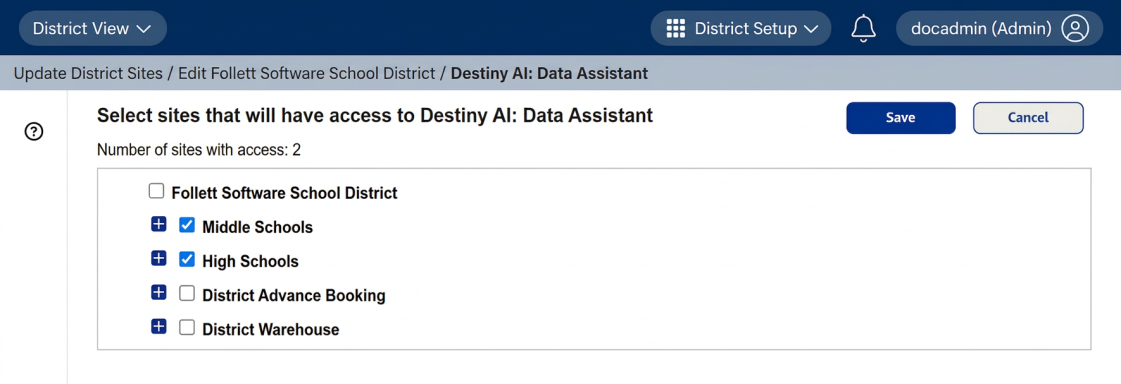
- Click Save. A pop-up appears.
- To continue, click Yes.
|
Note: The enabling process can take several hours. |
Once enabled, users with the appropriate access level permissions can access Library AI Assistant.
To grant access, enable the following access level permission(s):
- Access library functionality (Library Manager users)
- Access resource functionality (Resource Manager users)
These permissions are on the General permissions tab under Follett Software AI Access.
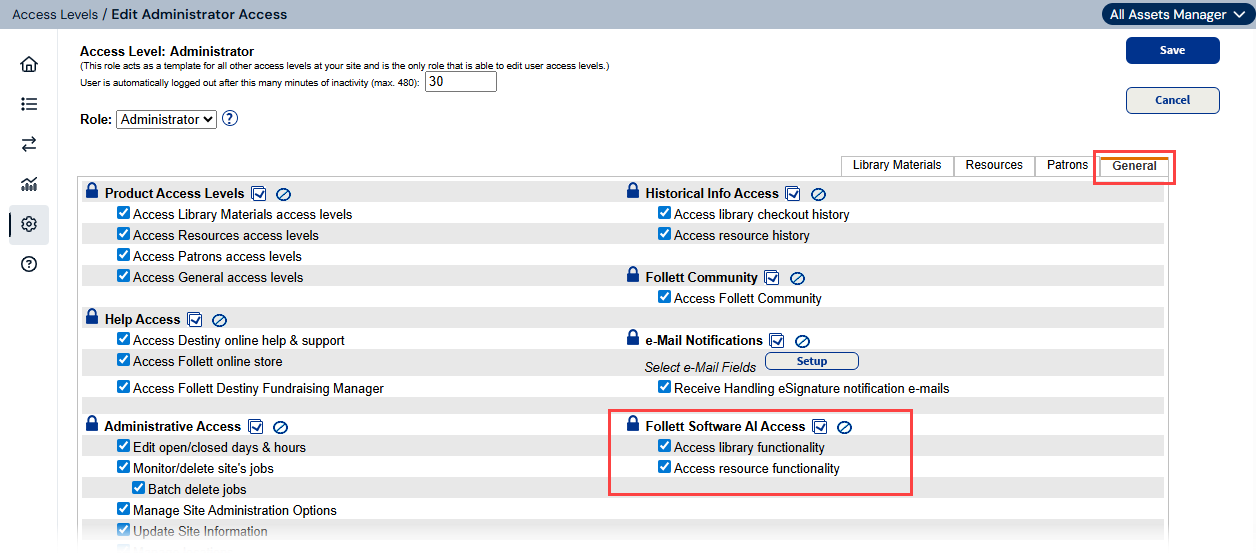
|
Note: For more information on managing access level permissions, see Access Levels and Permissions. (To access this Destiny Help Center link, you need to log in to Destiny v23.5). |
Upload district documents as data souces
You can upload district policies and documents so your assistant's responses reflect your district's guidelines. Learn how.
Disable Library AI Assistant
Access to Follett Software AI can be disabled for a site at any time.
To disable Library AI Assistant for a site(s) in your district:
- Log in to Destiny Back Office as a Destiny Administrator.
- Select the Applications menu > District Setup.
- Click the Sites tab.
- Next to the district name, click
 . The Edit District page appears.
 - Under Destiny AI: Data Assistant, click Select Sites.
- Deselect the appropriate checkbox(es) to disable Follett Software AI for all sites in the district, a group of sites (by site type), or specific sites.
- Click Save. A pop-up appears.
- To continue, click Yes.