Upload district documents as data sources
A Destiny Administrator can upload collection policies, procedures, and guidelines, and Library AI Assistant uses them across all schools where it's enabled. Library AI Assistant automatically references the uploaded documents to guide actions and recommendations.
|
Suggested document types:
|
To upload a document:
|
Note: Files must be in PDF format and have a maximum file size of 20 MB. |
- Log in as a Destiny Administrator.
- From the Applications menu, select Destiny AI.
- Click Manage data sources.
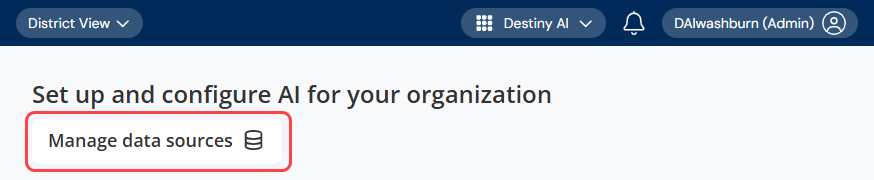
- Click Upload file.
- In the "Upload data source" pop-up, browse for or drag and drop the PDF file.
- Enter the following:
- Display Name
- Description (optional)
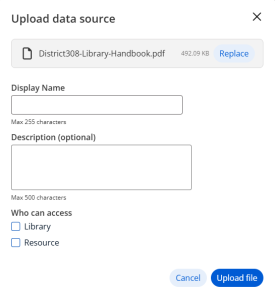
- Under Who can access, select Library and/or Resource users.
Note: Only users with the appropriate access level permissions can access Library AI Assistant.
- Click Upload file. Once a file has been processed, the Status appears as Active.

To edit, download, or delete a document you previously uploaded:
- Log in as a Destiny Administrator.
- From the Applications menu, select Destiny AI.
- Click Manage data sources.
- Do any of the following:
If you want to...
Then...
Edit a file or its settings
- Next to the file you want to edit, select
 > Edit.
 - Make any edits, or replace the file.
- Click Done. Once the edits have been processed, the Status appears as Active.
Download a file
Next to the file you want to download, select
> Download.Delete a file
Important: Deleting a file is permanent and cannot be undone. The content of the file is removed and is no longer accessible for the Library AI Assistant to use in its responses.
- Next to the file you want to edit, select > Delete. A pop-up appears.
- To proceed, click Delete file.
- Next to the file you want to edit, select